Power Platform Connectors in Copilot Cowork: Pilot
Pilot Power Platform connectors in Copilot Cowork with synthetic requests, rollout checks, admin controls, identity boundaries, approvals, and usage costs.
Harllens George de la Cruz | Published: 2026-11-11 | Updated: 2026-11-11
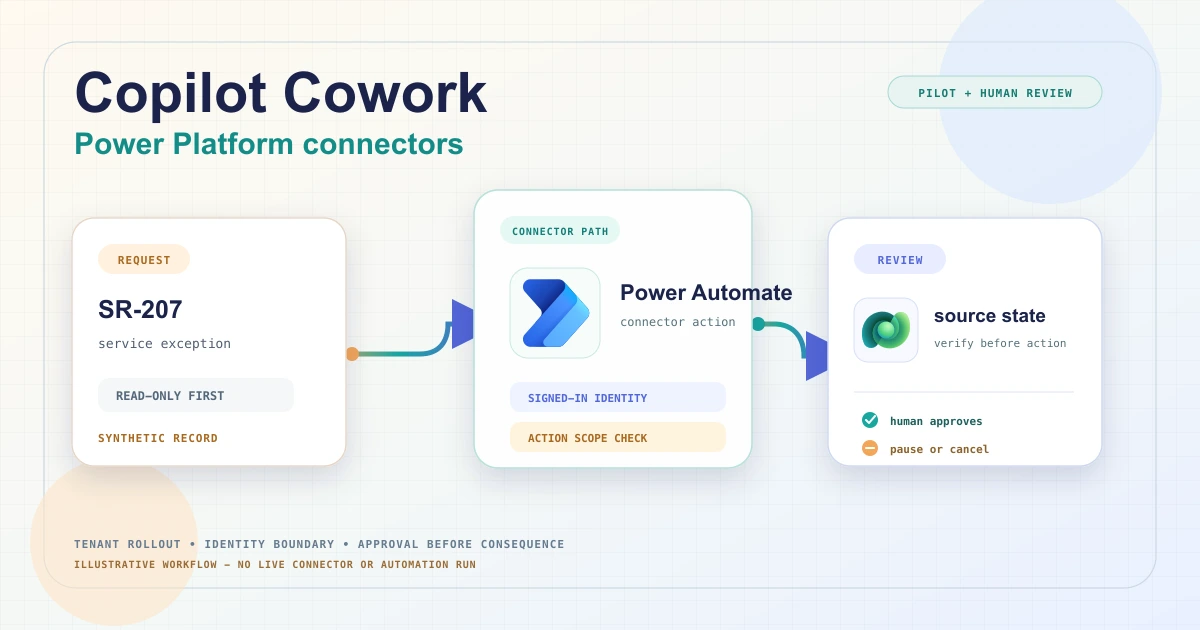
Power Platform connectors in Copilot Cowork are integrations that let Cowork use supported Power Platform-connected systems to retrieve or act on external data. Support, identity, actions, and event triggers remain tenant- and connector-specific. Microsoft's October 2026 update lists expanded Power Platform and Copilot connector support plus non-Microsoft event-driven triggers; treat that as a rollout signal, not a promise that every connector is available in every tenant. A pilot should confirm the exact connector, trigger, action, identity, and admin policy before using it.
This guide explains the connector boundary and works through a synthetic service-request review. It separates plugin approval, user sign-in, action approval, and usage billing because each is a different control. For related agent orchestration context, see Microsoft Foundry agent updates.
What a Cowork connector adds
A Cowork plugin is a package that may contain skills, connectors, or both. A skill is a prompt-based workflow for a type of work; a connector links Cowork to an external data source or service so it can retrieve or act on information. A role-based plugin is not itself proof that a particular Power Platform connector or trigger is enabled.
Microsoft's October 2026 Cowork update describes two related but distinct developments: Power Platform connectors that connect to systems organizations already use through Power Platform, and federated Copilot connectors using MCP with the user's permissions in the external system. Don't merge their setup, identity, or rollout details into one generic connector claim.
The current available-plugin catalogue also lists Microsoft integrations such as Business Applications in Work IQ, which can bring Dataverse, Dynamics 365, and custom Power Apps data into Cowork. That existing plugin is useful context, but it is not evidence that every connector, action, or event trigger from the Power Platform connector catalogue is available in Cowork.
Availability is a tenant check, not a promise
The October 2026 update describes expanded support, not access in every tenant, region, account, or environment. The official plugin guidance doesn't establish a universal regional availability matrix, and country- or region-based plugin scoping isn't supported by its admin controls. Verify the connector's presence and supported operations in the target tenant. Connector support can also differ by provider: Microsoft says event triggers are defined by the partner and documented for each plugin or connector.
Before planning a workflow, confirm all of the following in the target tenant:
- The exact connector or plugin is listed and enabled for the intended users.
- The required action or event trigger is supported; do not infer it from the connector's presence.
- The connector is associated with the right Power Platform environment or service account where the setup requires it.
- The user has the required licence and source-system permission, and the correct sign-in or consent flow is available. Microsoft's plugin administration guide says users of Cowork plugins must have Microsoft 365 Copilot licenses assigned; verify this alongside Cowork's usage-based billing policy.
- The admin has reviewed the plugin publisher, scopes, data categories, group assignment, and change path.
Microsoft's plugin catalogue notes that Dynamics 365 plugins require an associated Power Platform environment and ask the user to select one after adding the plugin. Treat that as a concrete reminder to validate environment selection and target data, not as a statement that all Power Platform connectors behave the same way.
Worked example: service-request exception review
Assume a fictional Dataverse-backed service register with one sample row, SR-207. It contains a request ID, service area, priority, owner, status, due date, and a link to an approved policy page. The example is a design exercise only; it does not claim that the named trigger or action exists in every tenant.
1. Start with a read-only question
If the exact connector is available and supports the required lookup, ask Cowork to summarize only the allowed fields for SR-207, cite the policy source, and list missing or contradictory data. Begin with one synthetic record and a read-only action. Check whether Cowork uses the expected signed-in identity and whether that identity can see only the records it should.
2. Add a draft, not an automatic write
Ask Cowork to prepare a reviewer brief and a proposed next step, such as "request the missing owner" or "route for policy review." Keep the first run from changing the source record, notifying a requester, or approving a business outcome. Compare every summary field with the record and source policy.
3. Evaluate the event-driven path separately
If the connector supports an event trigger, draft an automation that reacts to a narrow event, such as a new high-priority request. Cowork presents a card showing the event, what it will do, and the permissions it needs. Review that card before setup. Confirm where the run history appears and how to pause, edit, or disable the automation.
By default, event-driven tasks use a draft-and-approve pattern before sending a message or changing a shared system. Microsoft also allows users to pre-authorize actions when creating a task. Keep that choice narrow: an approval remembered for a task or session is not a substitute for checking the target connector's own authorization, Dataverse security, or any required business approval.
4. Test failure and boundary cases
Use a small test set before connecting sensitive or production data:
- An authorized request with a clear policy match.
- A request with no owner, an overdue date, or a conflicting policy reference.
- A record the signed-in user is not allowed to read.
- A missing or revoked connector sign-in.
- A duplicate event, connector timeout, or unsupported trigger.
- A proposed write that should be cancelled or routed to a human.
Verify the source record, action preview, approval decision, audit event, and final state independently. A natural-language summary or an approval card is not proof that the business process completed correctly.
Permissions, approvals, and admin governance
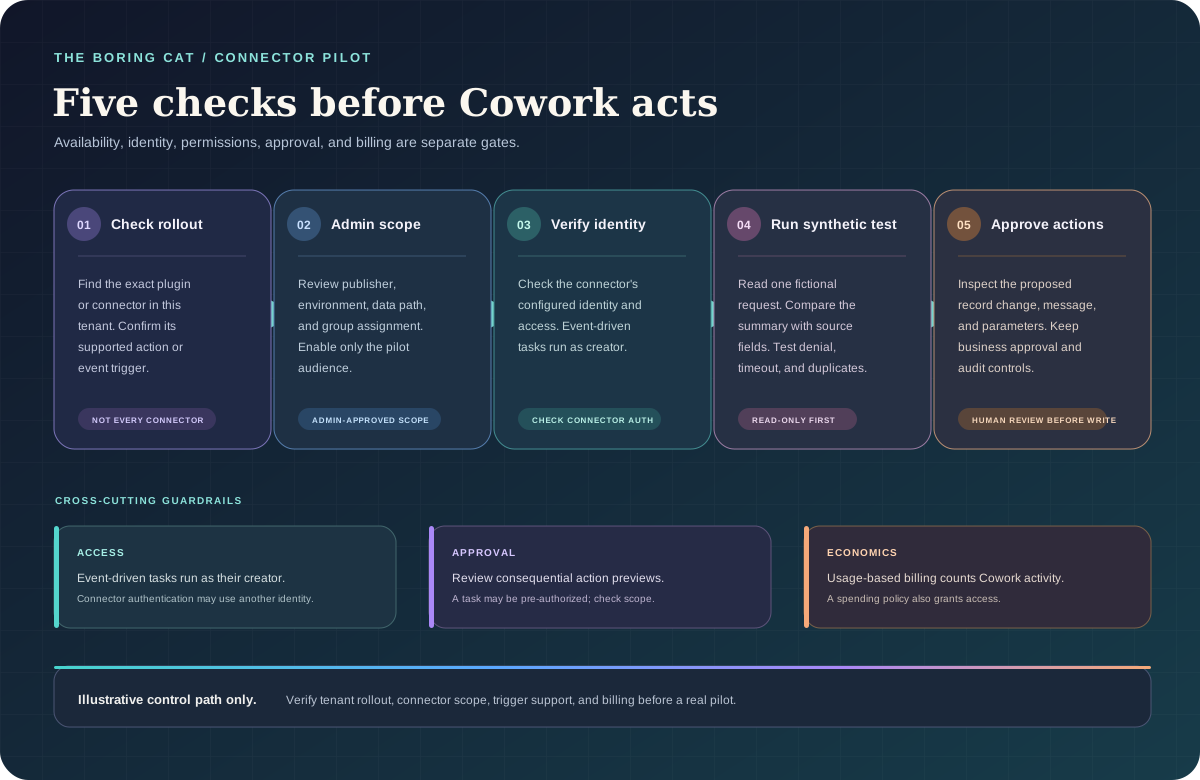
Microsoft says Cowork event-driven tasks run as their creator and see only what that user can see. Connector authentication is separate and service-specific: check whether each connector call uses a user's account or another configured connection identity, and apply least privilege to that identity. Admin deployment does not sign a user into an external service or prove that the connector's identity has appropriate data access. Some plugins require the user to complete a one-time sign-in or consent flow, which an administrator can't do on the user's behalf.
Separate these approval checkpoints:
- Plugin availability: an administrator decides which plugins are available and may deploy them to the whole organization or selected users and groups, or block them. Users can usually toggle an acquired plugin for their own sessions, even when they cannot remove an admin-deployed plugin.
- Service authentication: the user completes the connector's sign-in and permission consent, then checks that the account is the intended one.
- Task setup: the user reviews the automation card, trigger, action, and requested permissions before arming an event-driven task.
- Consequential action: Cowork presents sensitive actions for review and approval. Inspect recipients, records, and parameters. "Don't ask again" options can change future prompts, so keep approvals limited and review the current session's permissions.
- Business approval: keep existing Power Platform approval flows, role checks, and separation-of-duties rules in place. A Cowork confirmation should not silently replace them.
For plugin rollout, use the Microsoft 365 admin center's agent and tool controls, scope first to a named test group, and verify the connector's publisher and data paths. Microsoft notes that plugin governance and sharing do not currently support Purview Information Barriers; in tenants with Information Barriers enabled, embedded knowledge-file uploads are blocked. Check the current admin documentation before relying on a sharing pattern that depends on those files.
Usage billing is also an access control
Current Microsoft Learn guidance says Cowork is generally available, but usage-based billing and an assigned Microsoft Copilot license are prerequisites; users of Cowork plugins also need a Microsoft 365 Copilot license. The Copilot Credits guide additionally lists Cowork enablement and Anthropic availability among its prerequisites. Cowork activity such as model responses, tool and skill calls, image generation, and browser tasks counts toward organizational consumption. Microsoft's Copilot Credits guide lists a USD $0.01 pay-as-you-go meter per credit; actual consumption varies with task complexity and the applied billing plan. Admins can set user or group limits and review usage in the Microsoft 365 admin center.
The spending-policy detail is easy to miss: a policy that selects Cowork grants access to users in scope even if the credit limit is very small. A one-credit limit is not an access-denial control; a user may start work until the limit is reached. If a group must not use Cowork, keep it out of every Cowork-selecting spending policy rather than relying on a tiny cap. Also confirm any separate licensing, capacity, or usage charges that apply to the connected Power Platform environment or external service.
A practical pilot checklist
- Name the process owner, data owner, plugin administrator, and billing owner.
- Confirm rollout and the exact supported connector operations in the target tenant.
- Scope plugin availability to a small test group and verify environment and authentication.
- Use one synthetic record and begin with a read-only task.
- Review the action and permission cards; keep write actions approval-gated.
- Test denied access, missing data, duplicate triggers, failures, pause, and recovery.
- Set a usage limit and confirm which spending policy grants access.
- Accept the pilot only after the source-system state, audit trail, and business approval path match the expected result.
Conclusion
Power Platform connectors can make Cowork more useful across business systems, but connector rollout, plugin governance, user authorization, action approval, and usage billing remain separate checks. Start with a connector that is actually available in your tenant, use synthetic or low-risk data, and require evidence from the source system before expanding the workflow.
Sources
- What's new in Copilot Cowork - October 2026 connector and event-trigger updates.
- Available plugins for Copilot Cowork - current plugin catalogue and environment notes.
- Manage plugins for Copilot Cowork - admin deployment, availability, and governance.
- Manage Copilot Cowork for your organization - access, usage-based billing, spending policy, and compliance.
- Use plugins with Copilot Cowork - plugin activation, service sign-in, and connector authorization.
- Use Copilot Cowork - action approval and task controls.
- Microsoft Copilot Cowork - product overview.
- Copilot Credits Licensing Guide - prerequisites, usage, and credit meter.
Related reading
Editorial note: This AI-assisted guide describes an illustrative workflow. No Cowork tenant, Power Platform connector, Dataverse environment, or live automation was accessed or tested.