HTML to PDF in Power Apps Canvas Apps with a PCF component
Convert HTML to PDF in Power Apps Canvas Apps using a PCF component for inline preview, print, and optional PDF download, built for Microsoft Power Platform.
Harllens George | 2026-02-26
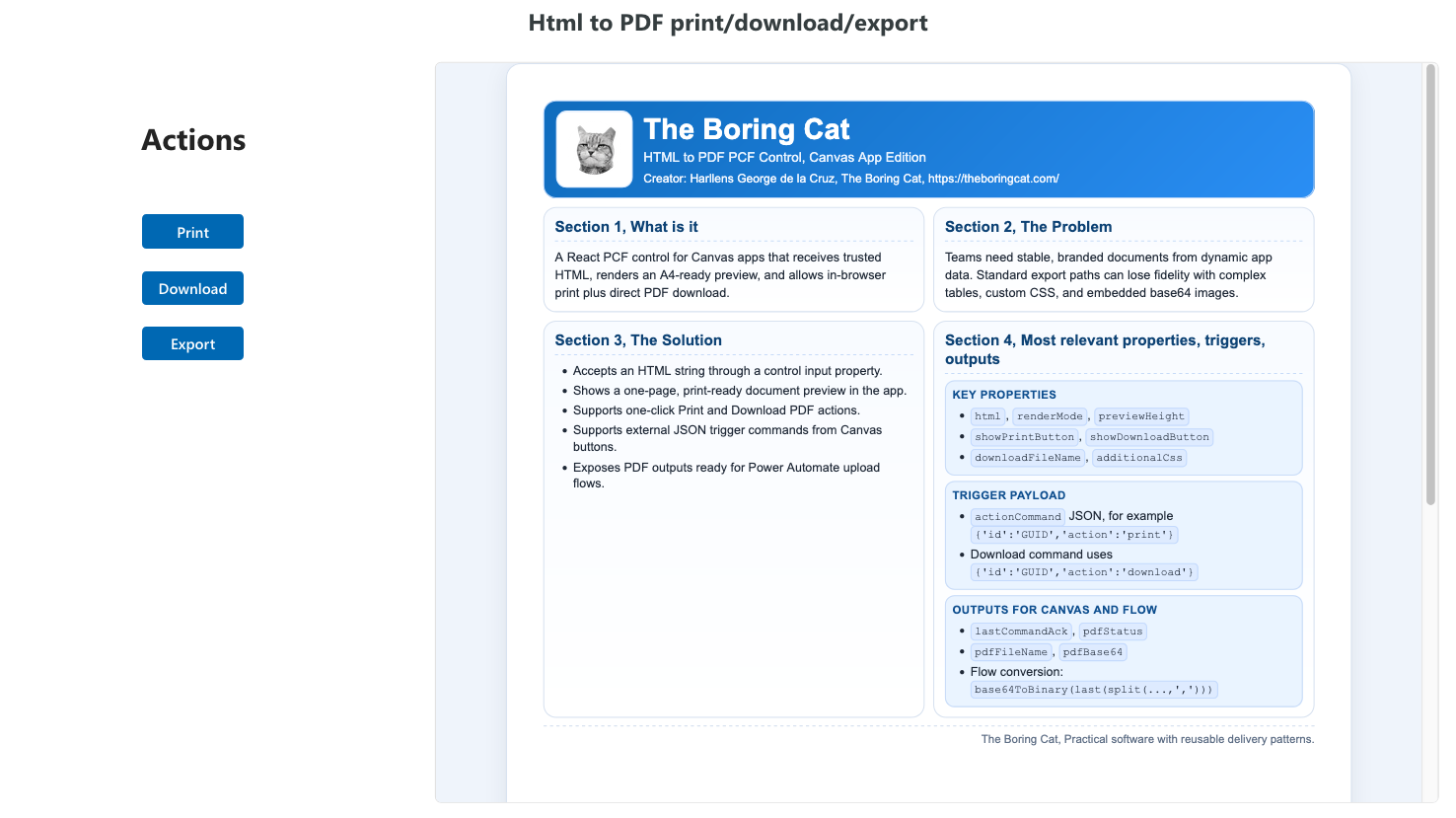
This guide shows a simple way to handle HTML to PDF in Power Apps Canvas Apps using a PCF component built for Microsoft Power Platform. It is meant for business apps where you already have HTML and you want a clean preview plus a reliable export path.
The key point: you can get a good v1 experience without adding a backend converter, and without requiring Power Automate for basic print or download.
What you can do
- Preview HTML inside the app
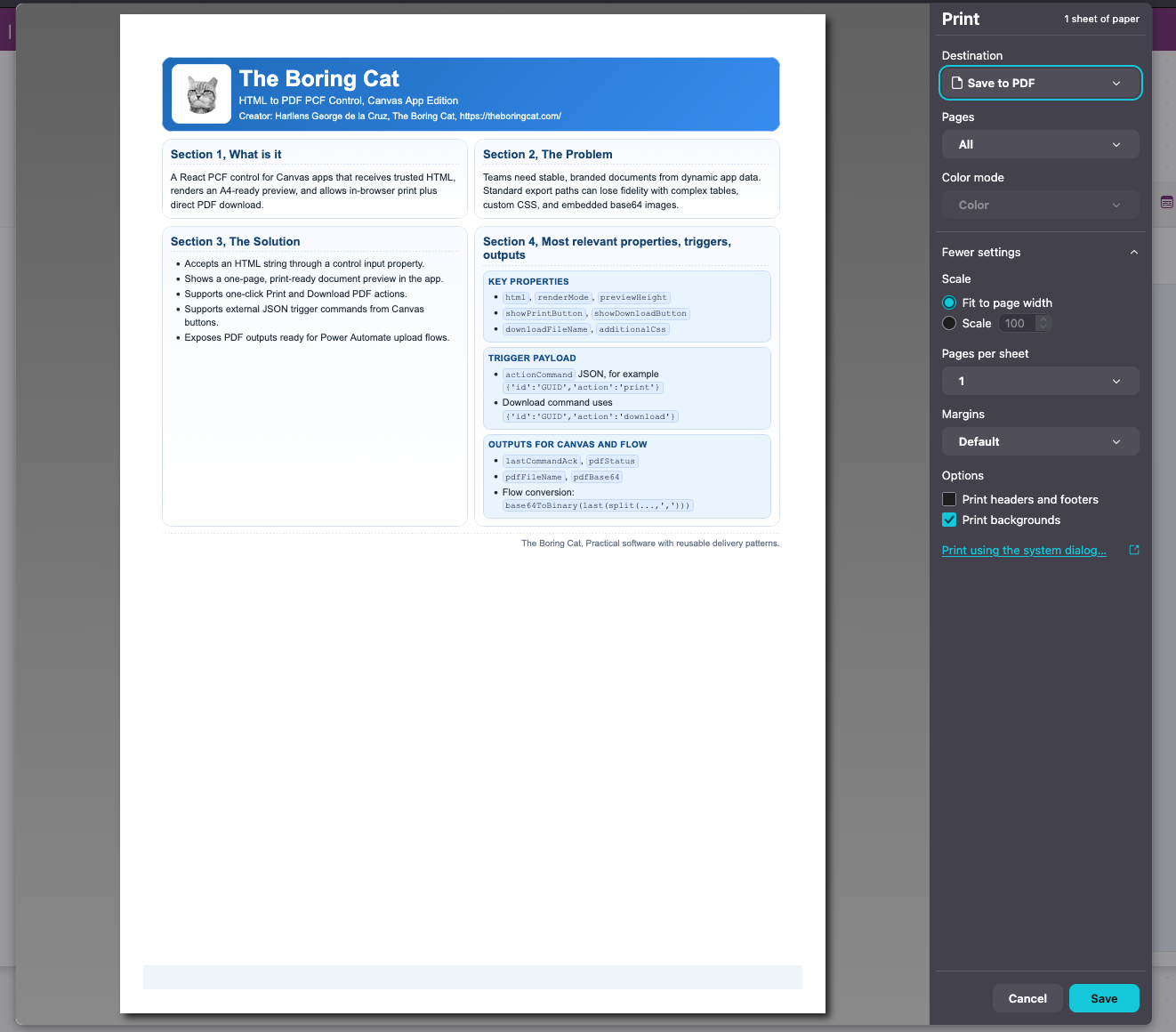
- Print using the browser print dialog (Save as PDF)
- Optionally download a PDF directly from the component
- Get the PDF as base64 when you want to store it in SharePoint or other systems via Power Automate
Who it is for
- Power Platform makers building document workflows in Canvas Apps
- Teams that want consistent export behavior across screens
- Projects that want a client-side v1 solution before adding server-side rendering
Get it
- GitHub repository: Just-Boring-Cat/html-pdf-converter-pcf
Use only trusted HTML with this component. Before sending a generated PDF to Power Automate, wait for pdfStatus = "ready", then pass pdfFileName and pdfBase64. These are the source project's documented inputs and output contract.
How to use (high level)
- Import the solution and add the PCF component to your Canvas App.
- Provide the HTML string you want to export.
- Use the inline preview to validate layout.
- Print to PDF (recommended) or use the optional download button.
Screenshots
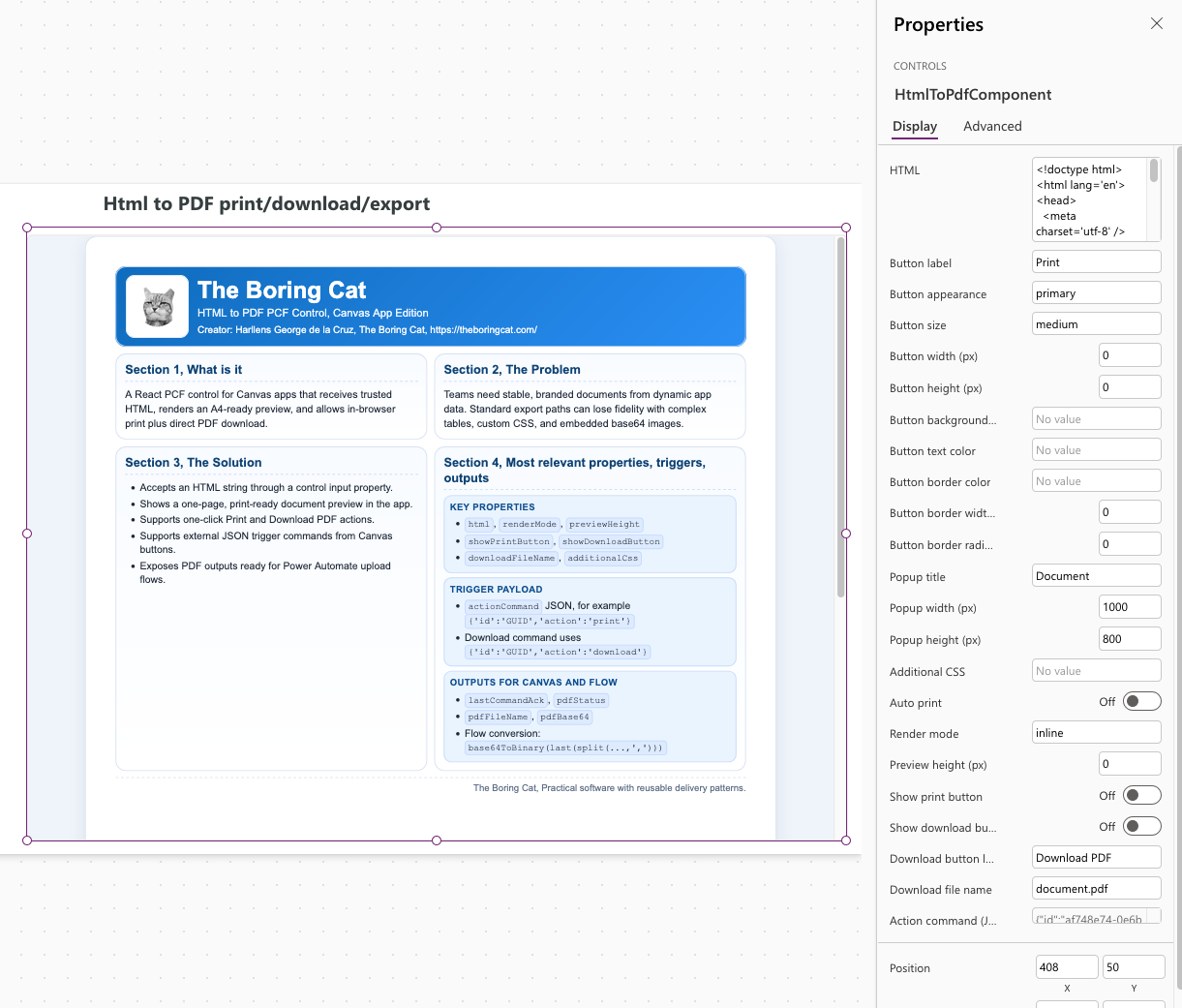
Component properties (maker configuration)
Example output via print flow
Sample HTML template
If you want a ready to use starting point, here is a one page template you can paste into the component. It uses inline CSS and includes an example base64 logo, so it works well in environments where external assets might be blocked.
<!doctype html>
<html lang="en">
<head>
  <meta charset="utf-8" />
  <title>The Boring Cat | HTML to PDF sample</title>
  <style>
    :root { --paper: #ffffff; --ink: #1f2937; --line: #d8e2f0; }
    body { margin: 0; font-family: "Segoe UI", Arial, sans-serif; color: var(--ink); }
    .page { width: 210mm; min-height: 297mm; margin: 0 auto; padding: 9mm; background: var(--paper); border: 1px solid var(--line); }
    .hero { display: grid; grid-template-columns: 72px 1fr; gap: 10px; align-items: center; }
    .grid { display: grid; grid-template-columns: 1fr 1fr; gap: 8px; }
    .card { border: 1px solid var(--line); border-radius: 12px; padding: 10px; }
  </style>
</head>
<body>
  <div class="page">
    <header class="hero">
      <img alt="Logo" src="data:image/png;base64,..." />
      <div>
        <h1>The Boring Cat</h1>
        <div>HTML to PDF sample</div>
      </div>
    </header>
    <section class="grid">
      <div class="card">...</div>
      <div class="card">...</div>
    </section>
  </div>
</body>
</html>
[[htmlsample:/content/documents/power-apps-html-to-pdf-pcf-component-canvas-apps/samples/the-boring-cat-one-page-sample.html]]
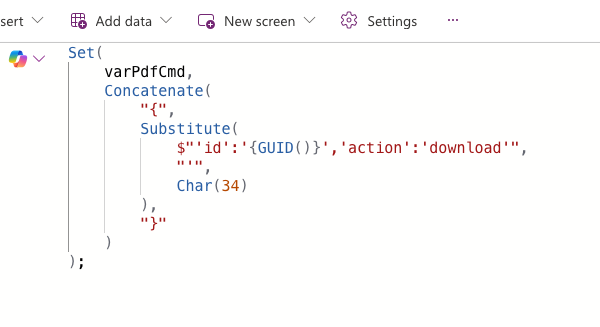
Trigger print or download from Canvas buttons
You can use the built in buttons inside the component, or trigger actions from standard Canvas buttons.
High level idea:
- Bind a Canvas variable to the component command input (for example
actionCommand). - Set the variable from a button click using a JSON command string.
- The component executes the command and updates its outputs.
Example (Power Fx, download):
Set(
    varPdfCmd,
    Concatenate(
        "{",
        Substitute(
            $"'id':'{GUID()}','action':'download'",
            "'",
            Char(34)
        ),
        "}"
    )
);
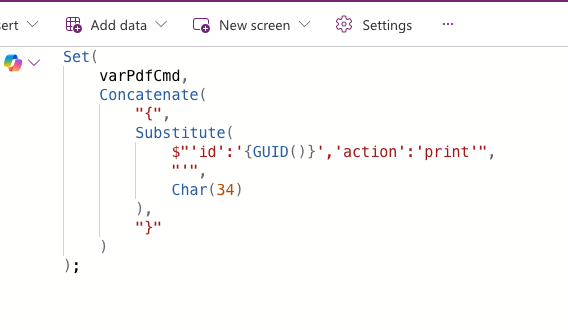
Example (Power Fx, print):
Set(
    varPdfCmd,
    Concatenate(
        "{",
        Substitute(
            $"'id':'{GUID()}','action':'print'",
            "'",
            Char(34)
        ),
        "}"
    )
);
Screenshots:
Get the PDF output as base64 (for SharePoint and automation)
If you want to store the generated PDF in an external system, use the component base64 output and pass it into Power Automate (for example SharePoint uploads).
Example (Power Automate expression, common pattern):
base64ToBinary(last(split(pdfBase64, ",")))
Practical tips
- Use Print to PDF as the default path when layout fidelity matters most.
- You can print or download without Flows. Power Automate becomes useful when you want to store the PDF automatically.
- Prefer base64 images inside HTML to avoid CORS and blocked asset issues.
- Line breaks are just normal HTML. Use
<div>,<p>, or<br>like you would on the web. - For very large documents, consider a backend renderer later.
Known tradeoffs
- Printing depends on browser behavior and user interaction.
- Client-side download output can be rasterized, which is fine for many internal workflows but not ideal for searchable PDFs.
Conclusion
If you need HTML to PDF in Power Apps Canvas Apps, this PCF component is a practical approach: preview, print, and optional download, with a simple setup that fits Microsoft Power Platform projects.