File Exporter PCF for Power Apps Canvas Apps
Export files from Power Apps Canvas Apps with a PCF component for Microsoft Power Platform, using JSON input, ZIP downloads, or output JSON for Flow and SharePoint.
Harllens George | 2026-03-23
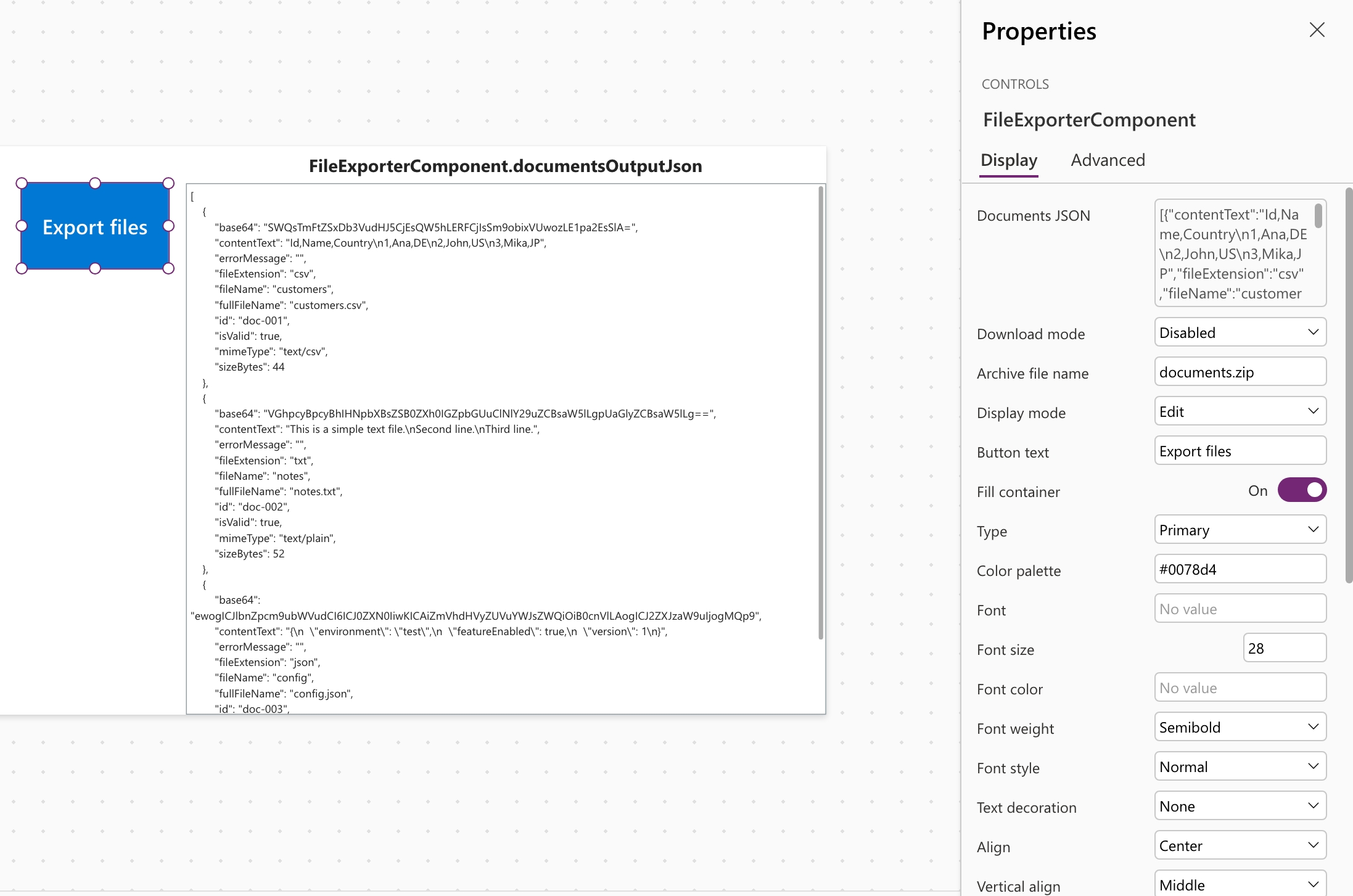
This guide shows a practical way to handle Power Apps file export PCF scenarios in Microsoft Power Platform. The component takes one JSON payload with one or more documents, then either downloads the files in the browser or exposes a structured output that you can pass to Power Automate, SharePoint, or another storage flow.
The main value is simple: makers can stay inside Canvas Apps, define documents in JSON, and choose whether the export happens immediately in the browser or downstream in automation.
What this component is
This is a PCF control for Power Apps Canvas Apps that prepares text-based files from documentsJson. It validates each entry, computes metadata, builds a base64 output per file, and supports three delivery modes:
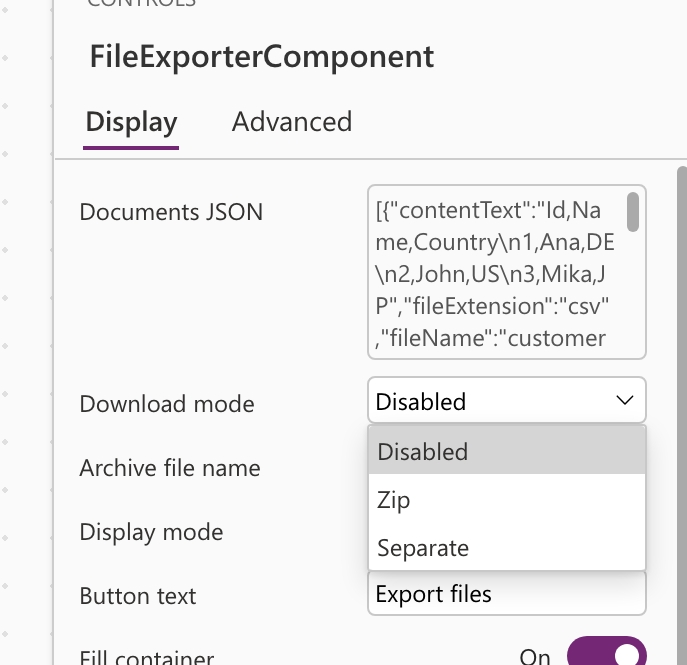
Disabled, output only, no direct browser downloadZip, one archive downloadSeparate, one browser download per valid file
Who this is for
- Power Platform makers building export features in Canvas Apps
- Teams that need a reusable file export pattern without writing custom browser logic
- Projects that want to hand generated files to Power Automate or SharePoint
Get it
- Repository: Just-Boring-Cat/file-exporter-pcf
Compatibility
- Microsoft Power Platform
- Power Apps Canvas Apps
- Power Automate or SharePoint flows when browser download is not the final step
- Text-based export payloads such as CSV, TXT, JSON, XML, HTML, Markdown, or SQL
Why this matters
File export is common in business apps, but the implementation usually gets scattered. One screen builds CSV, another triggers a Flow, and another tries to download multiple files with fragile custom logic.
This component gives you a cleaner contract:
- One JSON input for all document definitions
- One PCF control that handles validation and output shaping
- One output JSON that can be consumed by Power Fx or a Flow
That is useful when you want a repeatable export pattern across multiple apps.
Common use cases
- Export CSV or TXT files directly from a Canvas App
- Generate JSON payloads and store them in SharePoint through Power Automate
- Let users download one ZIP instead of many separate browser files
- Keep download disabled in the UI but still prepare files for external systems
How the component works
At a high level, the flow is straightforward:
- Provide a JSON array to
documentsJson. - Each object defines one file with
fileName,fileExtension,mimeType, andcontentText. - The component validates each document and exposes the result through
documentsOutputJson. - You choose whether to:
- keep the files inside the app outputs,
- download them as a ZIP,
- or attempt separate browser downloads.
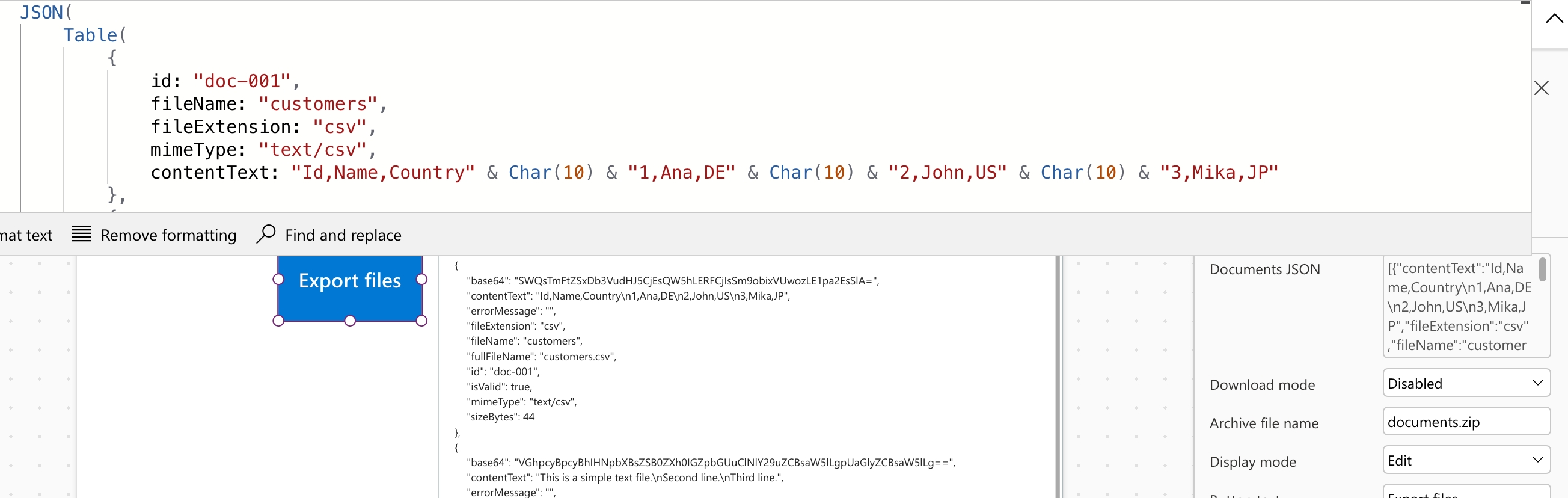
Minimal JSON example
[
  {
    "id": "doc-001",
    "fileName": "customers",
    "fileExtension": "csv",
    "mimeType": "text/csv",
    "contentText": "Id,Name,Country\n1,Ana,DE\n2,John,US\n3,Mika,JP"
  },
  {
    "id": "doc-002",
    "fileName": "notes",
    "fileExtension": "txt",
    "mimeType": "text/plain",
    "contentText": "This is a simple text file.\nSecond line.\nThird line."
  }
]
Screenshots
documentsJson input
Download mode selection
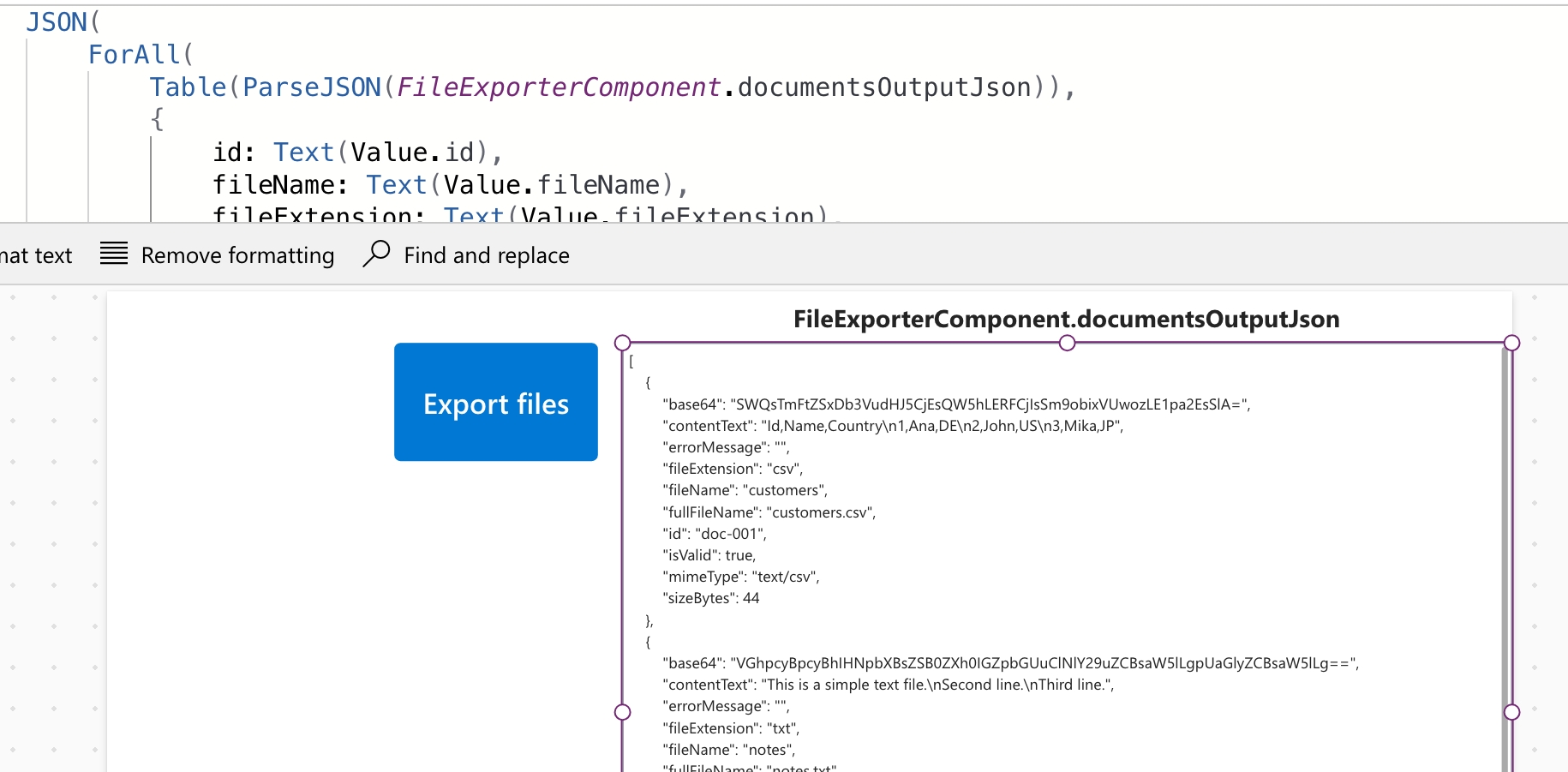
documentsOutputJson output
Output and status properties
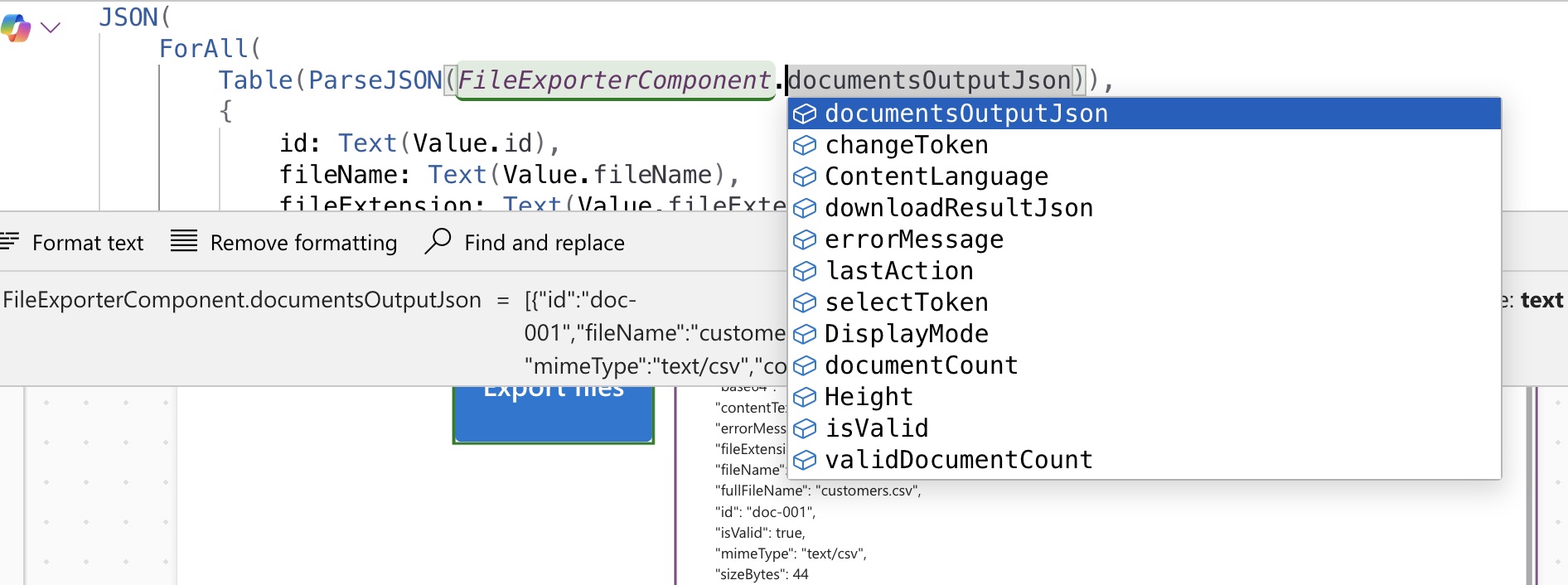
Which download mode to use
Disabled
Use Disabled when the control should only prepare the files. This is the safest option when SharePoint, Power Automate, or another external system should store the result.
Zip
Use Zip when you want one reliable browser download. In practice, this is the best built-in option for users who expect one click and one file.
Separate
Use Separate when you explicitly want one download per file. This is best effort because browser or host policies can limit multiple downloads.
How to use it in Canvas Apps
- Import the solution into your environment.
- Add the control to a Canvas App screen.
- Bind
documentsJsonto a JSON string. - Set
downloadModebased on the user journey:Disabledfor output-only flowsZipfor one archiveSeparatefor individual files
- Read
documentsOutputJson,isValid,validDocumentCount, ordownloadResultJsonin Power Fx.
Parse the output JSON in Power Fx
If you want to work with the processed output inside the app, parse documentsOutputJson into a collection.
ClearCollect(
    colDocs,
    ForAll(
        Table(ParseJSON(FileExporterComponent1.documentsOutputJson)),
        {
            id: Text(Value.id),
            fileName: Text(Value.fileName),
            fileExtension: Text(Value.fileExtension),
            fullFileName: Text(Value.fullFileName),
            mimeType: Text(Value.mimeType),
            contentText: Text(Value.contentText),
            base64: Text(Value.base64),
            sizeBytes: Value(Text(Value.sizeBytes)),
            isValid: Boolean(Value.isValid),
            errorMessage: Text(Value.errorMessage)
        }
    )
)
This is useful when you want to show a confirmation screen, filter valid documents only, or pass the final payload to a Flow.
SharePoint and Power Automate pattern
One of the most practical uses of this component is storing generated files outside the browser.
Recommended pattern:
- Set
downloadMode = Disabled. - Wait for the control to update
documentsOutputJson. - Send that JSON string to Power Automate.
- Use
Parse JSONin the Flow. - Loop over the documents.
- Convert each
base64field to binary. - Create files in SharePoint or another target system.
This gives you a stable handoff between the app UI and the storage workflow.
Important properties and outputs
Useful inputs:
documentsJsondownloadModearchiveFileNamedisplayModeInput- button styling inputs
Useful outputs:
documentsOutputJsondownloadResultJsondocumentCountvalidDocumentCountisValiderrorMessagelastActionchangeTokenselectToken
Common mistakes to avoid
- Using
Separatemode for critical multi-file delivery, ZIP is usually more reliable. - Expecting the control to upload files directly, it prepares outputs but does not store files by itself.
- Forgetting to validate
isValidanderrorMessagebefore sending data to Flow. - Using browser download when the real requirement is SharePoint storage, use
DisabledplusdocumentsOutputJsoninstead.
Next steps
- Start with one simple CSV or TXT export.
- Decide whether users need ZIP download or an external storage flow.
- Add a Power Automate handoff if SharePoint or another backend should own the files.
Conclusion
If you need a Power Apps file export PCF pattern for Microsoft Power Platform, this component gives you a practical base: JSON in, validated files out, and a clear choice between browser download and automation handoff.